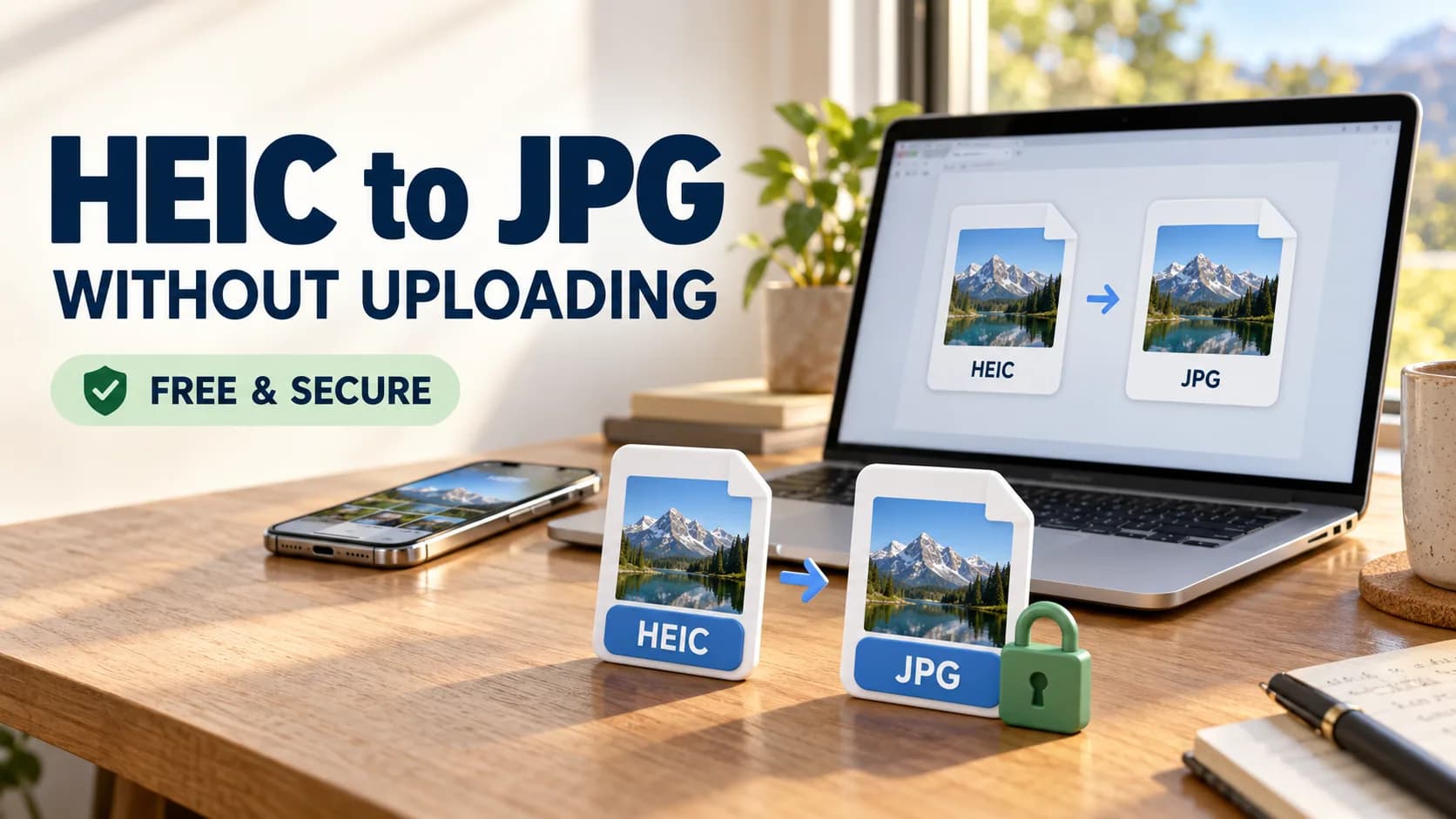
Have you ever transferred photos from your iPhone to a Windows computer, only to discover that the images will not open? This often happens because newer iPhones commonly save photos in HEIC format instead of the widely supported JPG format.
Fortunately, you can convert HEIC to JPG without uploading your photos to an unfamiliar website. Whether you use Windows, Mac, or an iPhone, several conversion methods allow you to create compatible images while maintaining greater control over your personal files.
In this guide, we explain what HEIC files are, why you might need JPG images, how to convert them safely, and what to consider when choosing a private image converter.
What Is a HEIC File?
HEIC stands for High Efficiency Image Container. It is a file format commonly used by Apple devices to store photos using modern image-compression technology.
The format is associated with HEIF, or High Efficiency Image File Format, which was introduced into Apple's mobile ecosystem with iOS 11.
One major advantage of HEIC is its ability to preserve good image quality while requiring less storage space than traditional JPEG files in many situations.
For example, users who capture thousands of photographs on their iPhones may benefit from reduced storage requirements.
However, HEIC images are not supported equally across all operating systems, websites, and applications.
According to Apple's official HEIF and HEVC documentation, compatible Apple devices can capture photos using more efficient formats while offering options to create or export JPEG files.
Why Convert HEIC to JPG?
Although HEIC is efficient for photo storage, JPG remains one of the most widely supported formats for sharing and publishing images.
Converting HEIC to JPG can be useful when:
Uploading photographs to websites that do not accept HEIC files.
Sharing images with people using older computers or software.
Adding product photographs to online stores.
Attaching images to applications or online forms.
Editing photographs in software with limited HEIC support.
Preparing images for websites, blogs, and social media.
JPG images are generally easier to use across different platforms.
However, converting an image does not necessarily improve its quality. Because JPEG uses lossy compression, some image information may be discarded during conversion.
For this reason, keeping the original HEIC file is recommended.
How to Convert HEIC to JPG Without Uploading
The safest approach for sensitive photographs is to use a conversion method that processes files directly on your device.
There are several options depending on your operating system.
Method 1: Use a Local Image Converter
A locally installed image converter can process supported HEIC files without transferring them to an external server.
Follow these general steps:
Open a trusted image conversion application.
Select the HEIC photograph you want to convert.
Choose JPG or JPEG as the output format.
Adjust image quality if the application offers this setting.
Start the conversion.
Save the resulting JPG image to your preferred folder.
Some browser-based converters also process images locally using browser technology. However, this depends on the converter's implementation and support for HEIC decoding.
A website describing itself as an online converter does not automatically mean that files remain on your device.
Before converting private photographs, verify how the service handles uploaded files.
You can explore additional browser-based utilities through ToolKloud's free online tools.
Convert HEIC to JPG on Windows
Windows users may encounter difficulties opening HEIC images if the necessary image extensions are missing.
Microsoft offers HEIF-related extensions that help compatible Windows applications read these files.
Steps for Windows
Locate your HEIC photograph.
Check whether Windows Photos or Paint can open it.
If the image does not open, install the required extensions from the Microsoft Store.
Open the photograph in a compatible application.
Choose the available Save As option.
Select JPEG or JPG as the output format.
Save the converted photograph.
The exact options depend on your Windows version and installed software.
Microsoft provides additional guidance about viewing HEIF and HEVC files in Windows.
For confidential photographs, using compatible local software avoids unnecessarily sharing your images with third-party conversion websites.
Convert HEIC to JPG on Mac
Mac computers offer a convenient way to convert HEIC images using Preview.
Steps for macOS
Locate the HEIC image in Finder.
Open the image using Preview.
Select File > Export.
Choose JPEG from the format options.
Adjust the quality settings if needed.
Select the destination folder.
Save the new JPG image.
This process creates a JPEG version of the photograph without requiring a separate online conversion service.
Preview is especially useful when you only need to convert a small number of files.
For photographs requiring additional editing, you can also explore other image utilities available through ToolKloud.
Convert HEIC to JPG on iPhone
If you regularly transfer photographs from an iPhone to Windows or upload images to websites, changing the camera format can simplify future sharing.
Change the Default Camera Format
Open Settings on your iPhone.
Select Camera.
Tap Formats.
Choose Most Compatible.
New photographs will then be captured in JPEG format on supported devices.
However, this change does not convert existing HEIC photographs.
To convert an existing image, use an application that supports exporting it as JPEG or transfer it through a method that offers compatible-format conversion.
Remember that JPEG photographs may require more storage space than their HEIC equivalents.
HEIC vs JPG: Which Is Better?
Both formats offer advantages, depending on how you use your photographs.
| Feature | HEIC | JPG |
|---|---|---|
| Compression | Often more storage-efficient | Standard lossy compression |
| Image quality | Good quality at smaller file sizes | Good quality, depending on compression |
| Device compatibility | More limited | Very widely supported |
| Website compatibility | Varies by platform | Broadly supported |
| Photo storage | Efficient for supported devices | Common for general use |
| Sharing | May require conversion | Usually straightforward |
When Should You Use HEIC?
HEIC is useful when you primarily capture and store photographs on compatible Apple devices and want to conserve storage.
When Should You Use JPG?
JPG is generally more convenient when sharing photographs, uploading website images, or working with applications that require broader compatibility.
For many users, the best approach is to preserve the original HEIC image and export a JPG copy whenever necessary.
Why Privacy Matters During Image Conversion
Photographs can contain sensitive information beyond the visible image.
Depending on camera settings and file metadata, photographs may contain:
GPS location coordinates.
Date and time of capture.
Camera manufacturer and model.
Technical camera settings.
Other embedded metadata.
Uploading photographs to an unknown converter may introduce unnecessary privacy risks.
A trustworthy conversion service should clearly explain whether files are processed locally, transmitted to a server, stored temporarily, or deleted after processing.
Local image processing can reduce the need to transfer sensitive photographs to third-party servers.
However, converting HEIC to JPG does not automatically remove all metadata.
If privacy is particularly important, inspect the converted file's metadata before sharing it.
You can also explore ToolKloud's online utilities for other supported file-processing tasks.
Frequently Asked Questions
1. Can I convert HEIC to JPG without uploading images?
Yes. Compatible local applications, including Apple's Preview on Mac, can convert HEIC photographs to JPG without uploading files to a third-party website.
2. Is HEIC to JPG conversion free?
Yes. Free conversion options exist, including built-in applications on supported operating systems. Some Windows configurations may require additional image-format extensions.
3. Does converting HEIC to JPG reduce image quality?
It can. JPEG uses lossy compression, so some image information may be lost. Choosing a higher-quality setting can help minimize visible changes.
4. Can I convert HEIC to JPG on Windows 11?
Yes. Windows 11 can open HEIC files when suitable format support is installed. You can then export or save compatible images in JPEG format.
5. Are browser-based HEIC converters private?
Not necessarily. Some converters process files locally, while others upload them to external servers. Check the service's privacy information and technical behavior before using it.
6. Can I convert multiple HEIC photos at once?
Yes. Some desktop applications and specialized conversion tools support batch processing. Availability depends on the software you choose.
7. Is HEIC better than JPG?
HEIC often offers better storage efficiency, while JPG provides broader compatibility. The better format depends on whether storage efficiency or easy sharing is more important.
Final Thoughts
Learning how to convert HEIC to JPG without uploading your photos can make image sharing easier while helping you maintain greater control over personal files.
Windows, Mac, and iPhone users have several practical options for creating widely compatible JPEG images.
When dealing with sensitive photographs, prioritize conversion methods that operate locally and clearly explain how files are handled.
For additional image, document, development, and productivity utilities, visit ToolKloud and explore its collection of free online tools.